
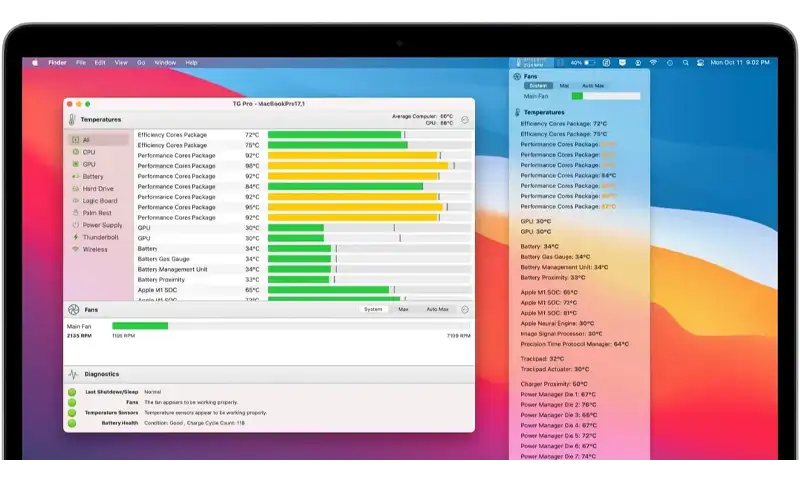
Symptoms — how to recognise an overheating MacBook
Before you panic, check if you see several of the signs below. A single symptom (e.g., loud fans during a 4K export) can be normal. Several at the same time = a real problem worth investigating.
Fans scream even under light load
You open Safari with 3 tabs and the fans immediately ramp up to 5500–6500 RPM. On a healthy MacBook, casual browsing should stay below 2500 RPM and be inaudible. If the fans kick in 30 seconds after boot, your cooling system can't keep up.
The case gets hot to the touch — palmrest or underside
The aluminium around the keyboard (especially above the F-keys) or on the bottom of the MacBook becomes uncomfortably hot (over 45°C / 113°F). It's a clear sign the CPU is dissipating heat, but that heat isn't being evacuated properly through the cooling system.
Performance tanks — aggressive throttling
Apps become slow, video stutters, exports take 2–3x longer. macOS automatically reduces CPU/GPU frequency when the SoC temperature passes 100°C. That means you bought an M2 Pro and are effectively using half of it.
Sudden shutdown with no warning
In extreme cases the MacBook shuts down instantly, no message. After reboot you'll find a "panic" report in Console mentioning "thermal" or "CPU temperature". This is Apple's protection mechanism — at 105–110°C die temperature, the device cuts power to avoid frying the chip.
Battery swells or drains visibly faster
Heat is enemy number one for lithium-polymer batteries. If the MacBook sits for months at 80–90°C near the battery, the cells degrade rapidly. Check About This Mac → More Info → System Report → Power to see if "Cycle Count" and "Maximum Capacity" show fast degradation.
Normal vs. critical temperatures — reference table
The following values are measured at the SoC (main chip) with Macs Fan Control or iStat Menus. The "normal" column means "healthy device, room ambient 22–25°C". "Critical" means "investigate, something is off".
| Workload | Normal temperature | Critical |
|---|---|---|
| Idle (device on, no apps open) | 38-48°C | > 60°C |
| Browsing / light office | 50-65°C | > 80°C |
| Video call / streaming | 60-75°C | > 85°C |
| Video export / code compilation | 85-100°C | sustained > 100°C |
| Gaming / 3D rendering | 90-105°C | sustained > 105°C |
The 6 real causes — in order of frequency
Out of thousands of MacBooks through our workshop, the cause distribution for overheating is clear: 80% are internal-hygiene issues (dust + old paste), 15% are software, the remaining 5% are hardware or improper use.
Dust and lint in the fans
The most common cause — 80% of cases we see. After 18–24 months of normal use, the radiator fins get covered with a thick layer of dust that blocks airflow. On MacBook Air M-series the problem is more severe because cooling is already at the edge.
Dried thermal paste / pump-out
Apple uses thermal paste with good initial performance, but it dries out in 3–4 years. On Intel models (2018–2020) it's a chronic issue — temperatures rise 10–15°C vs. factory state. Replacing the paste + thermal pads brings the MacBook back to factory performance.
Apps running 100% CPU in the background
Spotlight reindexing, mds_stores, kernel_task, Chrome Helper, Microsoft Defender, Adobe Creative Cloud Updater — all can constantly consume 30–100% CPU without you realising. Check Activity Monitor → CPU column "% CPU" sorted descending.
Full storage and SSD wear
When the internal disk exceeds 90% usage, macOS works much harder with virtual memory swap. That increases temperature indirectly, through constant load on SSD and RAM. Always leave at least 15–20% free on disk.
Environment and improper use
MacBook placed on bed, pillow or blanket = vents blocked. On Pro models, air intake is on the rear sides; on Air, through the hinge slot. If you block these areas, the cooling system is completely neutralised.
Temperature sensor or logic-board issues
Rarer but real: disconnected temperature sensors (after a sloppy repair), problem capacitors on power rails, or chips with partial damage. Here the diagnostic requires service equipment and thermal imaging.
Home diagnostic — 5 steps before calling a shop
Many users come to us with MacBooks that, after 10 minutes of checking, turn out to have problems solvable from a terminal. Before you pay for service, go through these steps:
Check Activity Monitor
Open Activity Monitor (Spotlight → "Activity Monitor") → "CPU" tab. Sort by "% CPU". If you see a process constantly consuming > 50% and it's not something you're actively using, it's suspicious. Note the process name.
Install a temperature monitor
We recommend Macs Fan Control (free) or iStat Menus. You'll see SoC temperature, trackpad-area temperatures, fan RPM in real time. Let them run for 1–2 days to build a picture.
Reset SMC and NVRAM (Intel only)
On Intel MacBooks (up to 2020), SMC + NVRAM reset sometimes solves fan control issues. On Apple Silicon (M1, M2, M3, M4) the procedure no longer exists — a simple full shutdown does the same thing.
Test in Safe Mode
Boot the MacBook in Safe Mode (M-series: hold Power → "Loading boot options" → hold Shift). If temperatures and fans return to normal in Safe Mode, the problem is clearly software — a kext or a login-items app.
Check installation dates
Did you recently install an app or macOS update right before the problem started? That's probably the cause. Search forums for "app_name + MacBook overheat" — chances are high it's a reported issue.
Software fixes you can do yourself right now
If the diagnostic points to a software cause, you have a good chance of fixing it yourself at no cost. A few interventions that actually make a difference:
- Clean Login Items: System Settings → General → Login Items. Leave only apps you use daily. Adobe Creative Cloud, Microsoft AutoUpdate, OneDrive — all add startup load.
- Reset Spotlight cache: if
mds_storesis constantly at the top, run in Terminalsudo mdutil -E /for a clean reindex. The process takes 1–2 hours, but eliminates broken indexing. - Update macOS: thermal bugs on old versions are usually fixed in patches. Check System Settings → General → Software Update.
- Browser cleanup: delete Chrome extensions you don't need anymore. A single poorly written extension can keep a thread at 100% in the background.
- Leave disk space: System Settings → General → Storage. If you're below 15% free, move files to an external drive or use "Optimize Storage" for iCloud.
Hardware cleaning — DIY or professional?
If the diagnostic points to dust/paste, you have two options. The cost saved on DIY is tempting — but the list of risks is long:
- Pentalobe screws that strip if you use the wrong screwdriver — you've put the MacBook in a state where no one can get in again without drilling;
- Battery connector that breaks easily and is a flex on a part with the controller (replacement costs over 800 RON);
- Pump-out of the thermal paste when you tighten heatsink screws unevenly — temperatures stay the same or higher than before;
- Display cable bent wrong when closing → lines on the screen after 2–3 open-close cycles.
The "saved" cost quickly turns into a repair 2–3 times more expensive. We recommend DIY only if you've disassembled 2–3 MacBooks in the past, have the right toolkit (iFixit Pro Tech) and a quality thermal paste (we exclusively use Thermal Grizzly).
What we do in a professional service
For any generation of MacBook (Air or Pro, Intel or Apple Silicon), the standard procedure is:
- Diagnostic and initial temperature measurements;
- Full disassembly — bottom case, battery disconnected, heatsink removed;
- Cleaning fans and radiators with industrial compressed air and ESD-safe brushes (no retail sprays);
- Removing old paste with 99.9% isopropyl and applying Thermal Grizzly — we exclusively use this range on any model;
- Reassembly with correct torque on heatsink screws — we eliminate pump-out;
- Post-service temperature verification.
✓ Rest of the range — newer Air & Pro Intel + all Apple Silicon (M1-M4): 360 RON (VAT included).
✓ Thermal Grizzly paste across the whole range, no exceptions.
✓ Same day with prior appointment.
When it's more than a cleaning — signs of serious hardware issues
If after a professional cleaning temperatures stay high, or if you have one of the symptoms below, the problem is probably on the logic board and needs further investigation:
- Fans stay at maximum even in Safe Mode, right after boot — disconnected or defective temperature sensor;
- Temperature rises rapidly and non-linearly even at idle — probably a problem capacitor on the CPU power rail;
- Battery visibly swells and the case bulges — urgent battery replacement (the fire risk is real);
- Repeated shutdowns at < 70°C — SMC issue on Intel models or SoC sensor issue on Apple Silicon.
In all these cases we do component-level investigation — thermal imaging, multimeter, schematic analysis. The cost depends on what we find, but the diagnostic is free if you repair with us.