
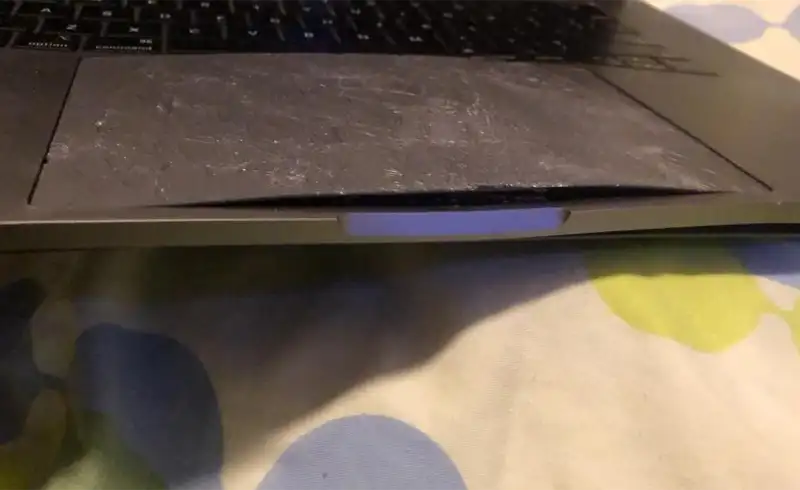
Part 1 — 7 external signs (check by eye, without opening anything)
Most badly repaired MacBooks give themselves away immediately under careful visual inspection. Equip yourself with a strong LED light (your phone torch will do) and a small 5-10x magnifier. Here is what to check:
Mismatched screw sizes or types, or missing screws
On MacBook, the bottom case screws are Pentalobe (P5), while the interior uses specific Torx T3/T5/T6 and Tri-point Y000. If you see Phillips, hex, or visibly different-sized screws on the bottom case, someone clearly opened it and closed it with whatever they had. A missing screw is even worse — it usually means the technician stripped it and did not replace it.
Double-sided tape or black tape instead of original sealing
On models with water resistance (MacBook Pro 2016+, Air 2018+), Apple uses specific gaskets and proprietary adhesive when closing the bottom case. If you see 3M double-sided tape, black electrical tape, or adhesive squeezed out around the edges, the repairer did not have the correct sealing material — they made do with what they had.
Gap between display and frame, or screen that "wobbles"
On a properly repaired MacBook, the hinge is firm and the screen sits perfectly aligned when closed. If you see a millimetre of space between the display and the lower case when closed, or the screen moves sideways under light pressure, the hinge screws were not torqued correctly (or are missing).
Thermal paste squeezed out around the heatsink
If you open the bottom case and see grey-silver thermal paste squeezed out beyond the CPU/GPU area onto the logic board, that is a sign of careless application. Excess thermal paste does not just look bad — it can contaminate nearby connections or cause short circuits over time. Proper application leaves a thin film visible ONLY in the die area.
Missing or wrongly applied Apple identification stickers
Apple uses identification stickers on the battery, logic board and display, with serial numbers that should match each other and the one on the case. If you see scratched, overlapping or non-matching numbers, the MacBook was assembled with parts from multiple devices. Not necessarily illegal, but a sign it is no longer fully "Apple original".
Prying scratches on the case edges
When a MacBook is opened without proper suction tools, the aluminium edges pick up small but visible scratches on the inside (near the screws) or on the corners. A technician with professional gear uses soft plastic picks and leaves no marks. Check the inner bottom case edges with a magnifier.
Case does not close perfectly — "rocks" on a flat surface
Place the closed MacBook on a flat surface and alternately press the diagonal corners. If it "rocks" (moves), the bottom case was bent during a previous opening. Aluminium has limited memory — once bent, it never returns perfectly flat. Clear indicator of a forced intervention.
Part 2 — 5 software checks (free apps, 10 minutes)
After the visual inspection, the most informative part is software. All you need are a few free apps and access to macOS on the evaluated Mac. Prepare a USB stick with Coconut Battery before you go:
Apple Diagnostics — the official Apple test
On Apple Silicon (M-series): power off, hold Power until "Loading boot options" appears, then Cmd+D. On Intel: power off, then power on holding D. Runs for 5-10 minutes. At the end you get "No issues found" or error codes (e.g. ADP000, PFM006). Any code other than "No issues" = real problem. Does not guarantee absence of past repairs, but identifies current functional issues.
System Report — verify serial number and declared parts
Apple Menu → About This Mac → More Info → System Report. Check: (1) Hardware Overview serial matches the one on the case; (2) Memory shows original Apple slots, not "Unknown"; (3) Power shows battery cycle count and manufacture date; (4) SATA/NVMe — whether the SSD is "APPLE SSD" or has been replaced with a third-party drive.
Coconut Battery — the truth about the battery
Free app (coconut-flavour.com). Shows: exact cycle count, design capacity vs current capacity (% of new), battery manufacture date. 600+ cycles on a MacBook "2 years old" is a sign it has been used intensively or is second-hand sold as nearly new. Battery manufacture date OLDER than the Mac manufacture date = battery was replaced.
checkcoverage.apple.com — Apple's official history
Enter the serial number at checkcoverage.apple.com. You see: original purchase date (if it shows "Estimated Purchase Date" — never registered with Apple, suspicious), warranty status, whether AppleCare+ was bought. Missing real purchase date is a sign the device was not sold through official channels or was someone else's.
True Tone test — original display or swap?
Original Apple display has True Tone working and visible in Settings → Display. Refurbished display or a swap without True Tone Programmer recalibration shows the option disabled or missing entirely. On 2018+ models, if True Tone is NOT in Settings, the display is almost certainly not original — or it is original but salvaged from another Mac without calibration.
Part 3 — 6 internal signs (if you open or have a professional diagnosis)
These signs cannot be seen without physical disassembly and/or microscope. If you have serious doubts and the seller does not allow enough external verification, come to us for a pre-purchase evaluation — in 30 minutes we do a complete inspection with microscope and lab equipment.
Microsoldering with excess solder, bubbles or blobs
At 40x magnification, professional microsoldering looks like small smooth shiny droplets. Solder with bubbles (trapped air), brown flux residue blobs, or solder spread beyond the pad indicates rushed work with the wrong tip or without a microscope. This does not just look bad — it weakens the connection over time.
Capacitors or resistors installed crooked / near sensors
SMD components must align perfectly on their pads, parallel to the board. If you see capacitors tilted, lifted on one end, or sitting on sensors or sensitive traces, they are installed incorrectly. Over time they can cause shorts or fall off the board at the first vibration.
Flex cables bent, pinched or with visible creases
Display, keyboard and trackpad flex cables should lie flat or curve gently. If you see 90-degree creases, adhesive instead of pad mounts, or signs that they were forced through components, the technician struggled to close the bottom case over a poorly positioned flex. Risk of tearing on the next opening.
Missing EMI shielding covers over connectors
Apple places small metal plates (EMI shields) over critical connectors on the logic board. They are fixed with 1-3 small screws. If they are missing, the technician opened the Mac, never put them back, and closed it like that. Functionally, missing shields cause electromagnetic interference — weaker Wi-Fi, unstable Bluetooth, sometimes dead pixels.
Unwashed microsoldering flux (brown/yellow residue)
Flux is a chemical paste used to let solder flow. After soldering, the flux MUST be cleaned with 99.9% isopropyl — otherwise it becomes corrosive within months and attacks the copper pads on the board. Yellow-brown residue on the logic board near a recent repair = ticking time bomb.
Non-Apple components installed (Chinese capacitors, reballed chips)
Apple uses components with standard markings. If you see chips with erased and re-laser-etched markings, capacitors with non-standard logos, or tape around chips (a sign of reball with badly applied hot air), you know a non-OEM repair was performed. Probably works — but not with the original reliability.
Questions to ask the seller
The best clues come not from what you see — but from the seller answers. Ask these questions directly, no roundabouts:
- Has this MacBook ever been opened?
- What is the current battery cycle count?
- Have the display, keyboard or logic board ever been replaced or repaired?
- Do you have the original receipt or proof of purchase?
- Are you the first owner?
- Can I run Apple Diagnostics in front of you?
- Can you sign out of iCloud and Find My in front of me before I pay?
Read the answers: an honest seller answers directly, without getting defensive, and does not refuse checks. A seller who avoids questions, becomes defensive, or says "we have no time now, someone else is coming after you" is probably dishonest. Leave.
When to walk away regardless of price
Three red flags that cancel any offer, no matter how good it sounds:
- Find My is still active and the seller refuses or cannot sign out in front of you. Means they do not own the Apple ID, so probably are not the real owner (or it is stolen).
- The receipt or proof of purchase is completely missing and the seller cannot explain why. For a MacBook bought in the last 5 years, the receipt exists somewhere (email, scan). Its absence = a problem.
- Refuses to let you run Apple Diagnostics or check Coconut Battery. These are 5-10 minute tests that damage nothing. Refusal = something to hide.