
Part 1 — The 5 types of iPad touch issues
Before blaming something specific, identify EXACTLY what your iPad is doing. Each symptom points to a different cause. Below the 5 distinct symptoms and the probability they\'re software vs hardware.
Touch completely frozen — no response anywhere
iPad shows the screen normally but does not react to ANYTHING you tap. Apps, buttons, keyboard — all ignored. Worse: the home button (on Touch ID models) or Apple ID swipe locks the same way.
Software chance: High — 70% of cases are software (iOS crash or memory leak).
Ghost touch — presses by itself without touching
The strangest symptom. iPad opens apps, types letters, opens notifications — all without you touching it. Often appears when on the charger or on a specific surface. In Notes, you see random text appearing suddenly. On the virtual keyboard, the "delete" button repeats by itself.
Software chance: Variable — 60% cheap charger/cable, 30% digitizer, 10% software.
Dead zones — specific parts of the screen do not respond
The top works perfectly, but the bottom third does not respond at all. Or the opposite — a vertical or horizontal column completely ignored. Most visible on the virtual keyboard or in Safari when you cannot tap links in certain zones.
Software chance: Low — 85% probability hardware (cracked digitizer or disconnected flex).
Lagging or jerky touch — 1-2 second delay on response
You tap a button but response comes 1-2 seconds later. Scroll jumps instead of being smooth. Pinch-to-zoom on Photos hesitates. iPad "thinks" at each gesture.
Software chance: High — 80% software (RAM full, background app, thermal throttling).
Misaligned touch — you press one button, another fires
You tap "A" on the virtual keyboard, but "S" appears on screen. You tap a link in Safari, but a different link above or below opens. Touch responds, but at a position 1-2 cm off.
Software chance: Very low — 90% defective digitizer (partially disconnected flex cables or laminated panel shifted).
Part 2 — Common causes (from trivial to serious)
The list below is ordered BY FREQUENCY, NOT severity. That means the first 3 are why most iPads come to service — and most are avoidable.
Cheap / fake charger (Aliexpress, market) — cause #1 for ghost touch
The article surprise: 60-70% of ghost touch cases on iPad are NOT caused by defective digitizer, but by an uncertified charger. These chargers emit small electrical fluctuations, but enough to "fool" the screen's capacitive sensors. The iPad sees touch where there is nothing. Solution: original Apple charger or MFi-certified (Made for iPad).
Quick fix: Swap the charger for an original Apple one for 24h. If ghost touch disappears — you have your diagnosis.
Defective or poor-quality USB-C / Lightning cable
Aliexpress cables, "compatible" stand-bought cables, or genuine Apple cables with internal wire breaks (but no visible damage). All can deliver inconsistent voltage that interferes with the digitizer. iPad is more sensitive to this than iPhone.
Quick fix: Switch the cable for a new Apple or Anker/Belkin certified one. Test 24h.
Screen protector too thick or badly applied
Cheap hydrogel films or films with air bubbles can interfere with screen capacitance. Especially on iPad with laminated screens (Air 4+, Pro 11+, mini 6+), where the digitizer sits very close to the surface glass. If the film is badly stuck, it presses on the screen in different zones.
Quick fix: Remove the film, clean the screen with microfibre, test touch for 1 hour. If it returns to normal, the film was the issue.
Liquid ingress (water, coffee, condensation from temperature change)
iPads are NOT water-resistant (exception: iPad Pro M4 with minimum IPX4). A drop of coffee on the screen entering through the adhesive edge degrades the digitizer contacts. Even condensation from a sudden cold-to-warm transition (winter) can cause temporary ghost touch until it evaporates.
Quick fix: Turn off iPad immediately. DO NOT power on for 24-48h. Place it in a warm, dry place (NOT rice — that's a myth). Then power on. If it persists — service.
Recent drop or pressure (in a tightly packed bag)
A "light" fall of 30cm from the sofa can internally crack the digitizer without affecting the outer glass. Or constant pressure in a backpack full of books squeezes the screen. Result: micro-fractures in the capacitive layer, visible only with a microscope. Touch becomes "intermittent" — works 80% of the time, then skips.
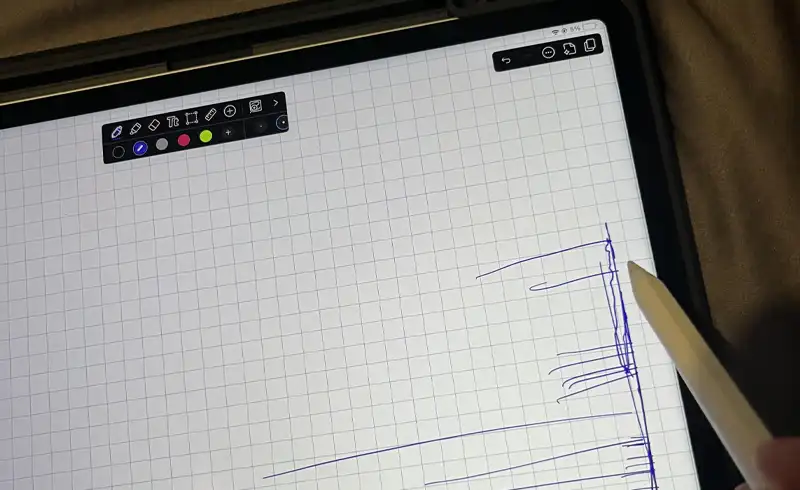
Quick fix: Test with a pixel grid app (free on App Store) — draw lines across the screen. Zones where the line breaks = defective digitizer.
iOS bug — especially after a major update
iOS 26.4 and 26.5 had touch lag reports on older iPads (Air 3, Pro 2018-2020). Spotlight re-indexing + Apple Intelligence occupy CPU and cause touch delay. Temporary, first 5-7 days after the update.
Quick fix: Force restart (volume up + volume down + power 10 seconds). Then wait 5 days, charge only at night. If it persists past 7 days — no longer software.
Part 3 — Home fixes in 7 steps (30 minutes)
Run the steps IN ORDER. 80% of problems resolve by step 4. If you reach step 7 (DFU restore) and touch still doesn\'t work, it\'s CLEARLY hardware — and you have proof you tried everything.
Force restart (10 seconds)
iPad with Face ID: press Volume Up quickly → Volume Down quickly → hold Power until Apple logo appears (~10 seconds). iPad with Touch ID: hold Home + Power simultaneously until logo appears. This force-closes any blocked process in memory.
Clean the screen properly
Turn off iPad completely. With a clean microfibre cloth lightly dampened with water (NO alcohol, NO glass cleaner), wipe the entire screen in circular motions. Focus on corners and edges where dust and grease accumulate, interfering with the capacitive touch.
Change the charger and cable
If you use a non-Apple cable or charger (or an Apple cable with visibly damaged wire), swap them. Use only an original Apple charger for the next 24h. If ghost touch disappears — you have the cause.
Remove the screen protector and case
Take off the screen protector and any case. Test touch for 30 minutes without them. Cheap hydrogel films and cases with raised edges are common causes.
Check for iOS update and install
Settings → General → Software Update. If an update is available, install it. Apple has fixed touch issues in iPadOS 26.4.2 and 26.5. If you're on an old version, the problem may be solved by a simple update.
Reset settings (does NOT erase data)
Settings → General → Transfer or Reset iPad → Reset → Reset All Settings. This does NOT erase photos, messages, apps — just settings (Wi-Fi passwords, home screen layout). Useful if a corrupt setting affects touch.
DFU restore (last software step)
Connect iPad to Mac/PC, enter DFU mode, restore to factory. This erases EVERYTHING — backup to iCloud first. If after DFU restore touch still doesn't work, it's CLEARLY hardware. Come to service.
Part 4 — Clear signs it\'s hardware (come to service)
If you check at least 1 of the signs below, STOP wasting time on software fixes. Schedule a diagnostic with us (free) or directly an evaluation for repair.
- ✗ Misaligned touch — you press one button, another fires 1-2 cm off
- ✗ Clear and consistent dead zones — the same areas NEVER respond
- ✗ Glass is cracked or has shock marks (even micro-cracks)
- ✗ iPad was dropped recently or under heavy pressure
- ✗ Liquid got into the iPad (even a small drop)
- ✗ After a full DFU restore, touch still doesn't work properly
- ✗ With an external Bluetooth keyboard everything responds — only direct touch is the issue
Part 5 — Repair prices per iPad model (May 2026)
Cost depends on screen type (separate vs laminated) and iPad generation. The oldest models (with Lightning) are the cheapest, iPad Pro with tandem OLED is the most demanding.
| iPad model | Complexity | Radical price |
|---|---|---|
| iPad 9 / 10 (with Lightning) Most accessible repair. New digitizer + labour. Genuine Apple via GPD or verified OEM. | Digitizer separate from LCD | 450-650 RON |
| iPad mini 6 (2021+) On a laminated screen, you cannot swap just the digitizer — it comes as a display assembly. More expensive. | Laminated (display+digitizer fused) | 1,500-1,900 RON |
| iPad Air 4 / 5 (2020-2022) Delicate disassembly. Electric adhesive for battery helps the intervention. | Laminated, with strong adhesive | 1,300-1,700 RON |
| iPad Air M2 (2024) New display — Apple price increased. GPD available for parts. | Laminated with M2 OLED | 1,800-2,400 RON |
| iPad Pro 11" M1 / M2 Disassembly takes 90 minutes. Apple Pencil calibration required after. | Laminated, multiple flex cables | 2,500-3,200 RON |
| iPad Pro 12.9" M1 / M2 Expensive mini-LED display. The most demanding iPad to repair pre-2024. | Mini-LED + laminated | 3,500-4,200 RON |
| iPad Pro M4 (2024) — Tandem OLED The most expensive iPad on display. Tandem OLED requires special calibration. | Very thin tandem OLED display | 4,000-5,500 RON |
All prices include genuine or verified-refurbished parts, labour, Apple Pencil calibration (where required), and 24 months labour warranty + manufacturer part warranty.
Part 6 — How to prevent iPad touch issues
6 recommendations any serious technician would give you. Applied, they extend digitizer life by 3-5 years vs careless use.
- 1 Use only original Apple chargers or MFi-certified ones (Anker, Belkin, Spigen). The price difference vs fakes is recouped on the first avoided repair.
- 2 Buy thin tempered-glass screen protectors (under 0.3mm), not hydrogel. Hydrogel interferes with capacitive touch on laminated iPads.
- 3 Don't put iPad in a backpack under heavy books. Constant pressure degrades the digitizer over months.
- 4 Winter: let iPad adjust for 30 minutes before powering it on after coming from outdoors. Internal condensation causes temporary ghost touch.
- 5 Don't leave iPad in the bathroom or kitchen with steam. Even if it looks dry externally, steam enters through the adhesive edge.
- 6 iOS updates yes, but wait 1-2 weeks after a major version launches. Let Apple fix the known bugs.
Frequently asked questions
How do I tell a ghost touch from a problem with ME? (No, I'm not joking)
My iPad is 7 years old — is digitizer replacement worth it?
If iPad fell and the glass is cracked, but touch still works — still need repair?
Is Apple Pencil calibration needed after screen replacement?
iPad doesn't respond, but responds to Bluetooth keyboard — what does it mean?
Does your repair come with warranty? And on what?
iPad with active Activation Lock — can I repair at your shop?
Useful resources
- iPad repair — why it costs what it costs (transparency)
- Genuine Parts Distributor — original Apple parts for iPad
- Parts from dismantling — why we avoid cheap digitizers
- How to prepare your iPad for service
- iPad repair — all models and prices
- Apple — if your iPad screen doesn\'t respond to touch (official)