
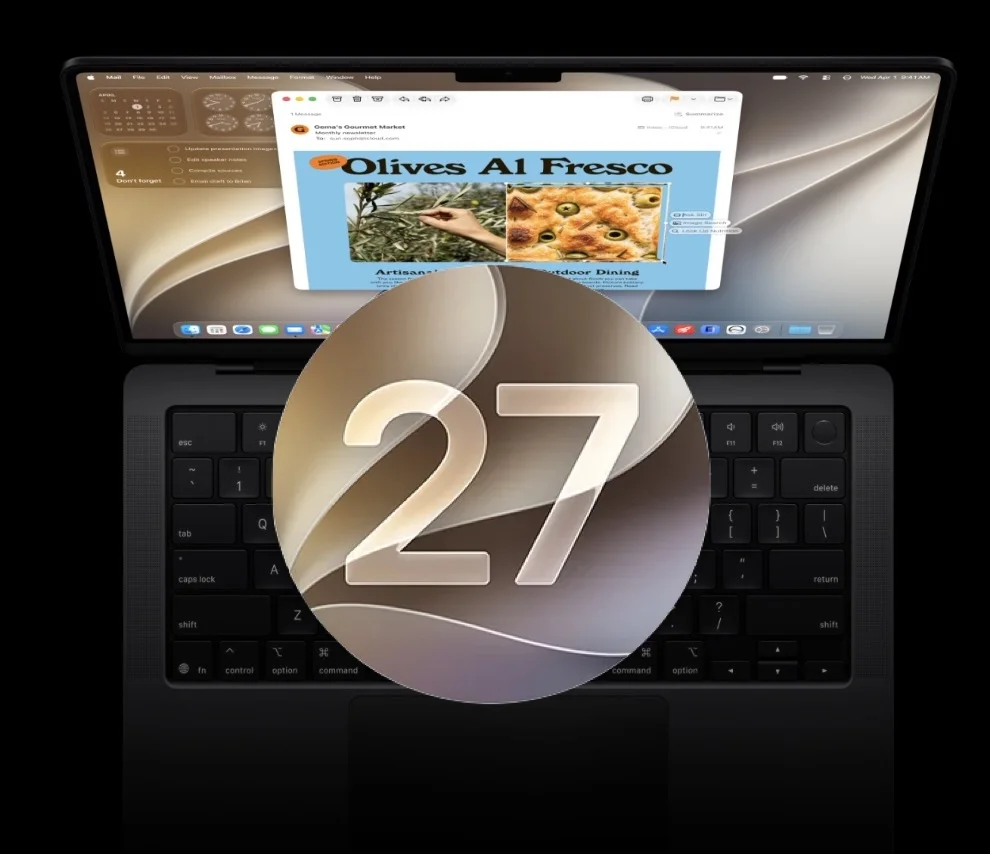
What happened to us, after four days
🖥️ A screen full of glitches
The Liquid Glass effects produced on-screen artifacts, like a PC with an old graphics card or a missing driver. We had to turn the effects off to be able to work.
📦 Apps that wouldn’t launch
Some only started after we updated them. Others haven’t received an update yet and, for now, we can’t use them at all.
🧠 At least 12 GB of RAM in use
With nothing special running in the background, memory used never dropped below 12 GB out of 16.
💾 A full SSD
The system cache went past 70 GB. Together with installed apps and their caches, nothing extravagant, the 256 GB filled up.
What did macOS 27.0.1 fix? Almost nothing documented
The first fix release, macOS 27.0.1 (build 26A434), arrived on September 28 (US time), as a download of about 3.3 GB. The public notes only say it brings „bug fixes”, with no list at all. The only fix named explicitly appears in the enterprise notes: a Platform SSO sign-in issue at the Lock Screen.
In short: for Mission Control, graphics glitches, memory or storage, Apple hasn’t confirmed anything. Many users say 27.0.1 didn’t change their experience. The hope rests on the next releases.
We’re not the only ones
On r/MacOS and in Apple’s community, the complaints look a lot like ours:
- • Mission Control and app switching: a screen that stops responding when switching apps quickly, skipped or jittery animations.
- • Dock and menu bar frozen after login, fixed only by a forced restart (reported on a MacBook Air M5).
- • Universal Control stuttering, with repeated keystrokes, after 27.0.1.
- • Apps freezing or not working (for example Telegram, Bambu Studio), a second display dropping out, Night Shift turning off after sleep, idle battery drain.
- • Some couldn’t even postpone the update: on centrally managed (MDM) work Macs, it was forced.
To be fair: in the same threads, many say macOS 27 runs smoother than macOS 26 on their Mac, including M1 and M3 models. People with problems post more than people without them. And some cases were traced to third-party extensions or a botched install. The experience varies a lot from one Mac to another.
Problem by problem: what you can do
1. Graphics glitches (Liquid Glass)
Drawing the „glass” effects falls on the GPU. You have two options: move the Liquid Glass slider toward the „tinted” end, which takes less graphics work, or turn on System Settings → Accessibility → Display → Reduce Transparency. On ours, turning the effects off removed the artifacts completely.
2. Apps that won’t launch
Update everything you can, from the App Store and from apps that update themselves. For those without a compatible version yet, all you can do is wait for the developer. If you rely on an app for work, check its website for macOS 27 compatibility before updating, not after.
3. RAM: 12 GB used at idle
On ours, memory in use never dropped below 12 GB out of 16, with nothing special running. To tell whether usage like this is hurting you too, the number alone doesn’t tell the whole story: macOS fills free memory with cache anyway, so apps launch faster. The indicator that matters is „Memory Pressure”, in Activity Monitor → Memory.
If the graph is green, the Mac is coping. If it’s yellow or red and „Swap Used” keeps growing, it really is short on memory and you’ll feel it in speed. Especially on a Mac with a nearly full SSD, swap needs room too, so RAM and storage problems make each other worse. In the first days after the update, indexing (processes like mdworker or photoanalysisd) uses extra.
4. A full SSD
This is the most concrete problem, especially on 256 GB Macs. macOS 27 automatically downloads the Apple Intelligence models that run on the Mac and, unlike earlier versions, you can no longer refuse the download. Reviews mention tens of GB of extra space reserved for the system. It all shows up under „System Data” in Storage.
Check what’s taking space first
System Settings → General → Storage. Let it finish calculating.
Turn off Apple Intelligence if you don’t use it
System Settings → Apple Intelligence & Siri. The space isn’t freed instantly; the system manages it.
Don’t blindly run commands found online
Terminal delete commands, especially „sudo rm -rf”, can break macOS if they hit the wrong folder. Find out exactly what takes the space first.
Factor in local Time Machine snapshots
They can take space temporarily; the system frees them automatically when it needs to.
What’s actually hiding in „System Data”
Our 70+ GB of cache isn’t an isolated case. On r/MacOS, one user reached 198 GB of „System Data” on a 256 GB MacBook Air, after already trying all the classic advice. The culprit turned out to be a single 137 GB media cache. The catch is that „System Data” is basically everything macOS doesn’t know how to put in another category, so anything can end up there. From the same discussion, the causes people found:
- • Animated (Aerial) wallpapers: one user describes a bug on macOS 26 and 27 where their cache grows unchecked, 22 GB in their case. Another found about 100 GB of screensaver movies. Switching to a static wallpaper stops it refilling.
- • Media and app caches: Adobe can easily pass 100 GB; Office, browsers that keep old versions, AI apps downloading large models.
- • Leftovers from uninstalled apps: you delete the app from Applications, but its gigabytes stay in ~/Library/Containers or ~/Library/Application Support.
- • Messages attachments and old iPhone backups, plus iCloud photos downloaded locally, which macOS sometimes also counts as „System Data”.
How to find the culprit: the easiest way is a disk analyzer that shows visually which folder takes how much. DaisyDisk (paid, very easy to use) solved the 198 GB user’s problem in five minutes. The free, more technical options are Mole and OnyX. Only once you know exactly which folder is the problem do you decide what to delete.
The broader lesson: on Apple Silicon Macs, the SSD is soldered to the board and can’t be upgraded later like on a PC. If you’re buying a Mac now, 256 GB is the bare minimum, not a comfortable choice. For photos and large projects, a good external SSD saves you a lot of trouble.
5. Mission Control stuck, system not responding
Restart. Then check menu bar utilities and third-party extensions (window managers, „cleaners”, antivirus tools): some cases were traced exactly to them. If the problem stays, test a new user account; if it works there, the problem is in your settings, not the system. As a last resort, macOS can be reinstalled from Recovery mode without losing your data, but back up first.
Our verdict
On the Mac we work on every day, macOS 27 isn’t yet a version we’d recommend without reservation. Some problems are fixed in settings (the glitches), others depend on developers (the apps), and storage is a new reality you have to live with on 256 GB.
If you’re still on macOS 26 and your Mac is a work tool: check your apps, free up space and consider waiting for the next fix releases. If you’ve already updated: the steps above solve most of the annoyances.
On iPhone, the picture is similar: what problems iOS 27.0.1 brings and what to do.
Radical Service: services and guides
Sources: MacRumors (macOS 27.0.1), MacsOnly (build and notes), Ars Technica review via Techmeme, Tom’s Guide (storage and Apple Intelligence), Apple Community, r/MacOS (1), r/MacOS (2), r/MacOS (System Data, 198 GB). User reports are not confirmed by Apple; the situation may change with upcoming updates.