
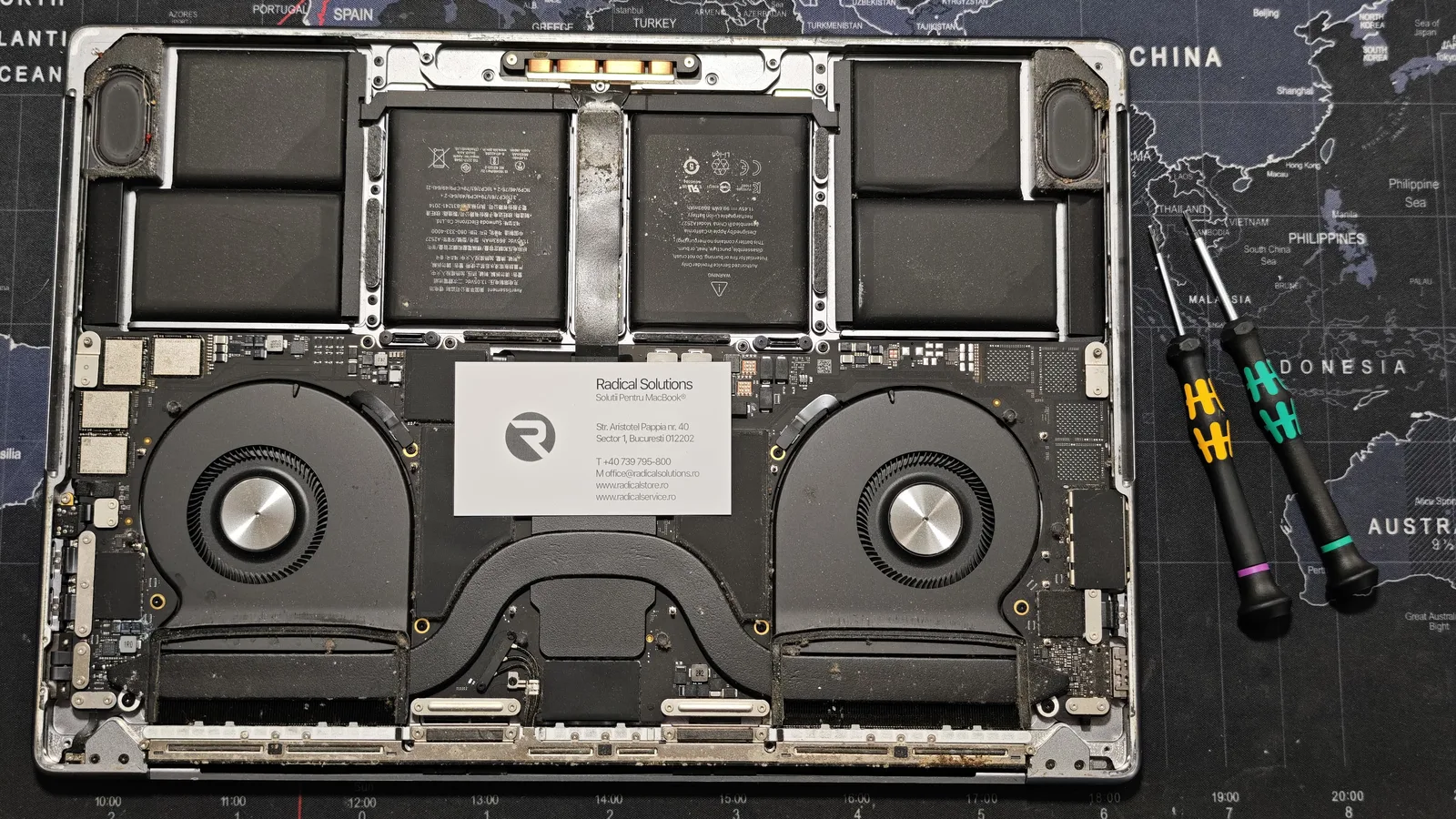
What landed on the bench
The symptom was the „quietest” possible: no power. It wouldn’t start, the screen stayed black, no reaction to the charger. The owner told us the laptop had been in contact with a liquid. So far, a scenario we see often.
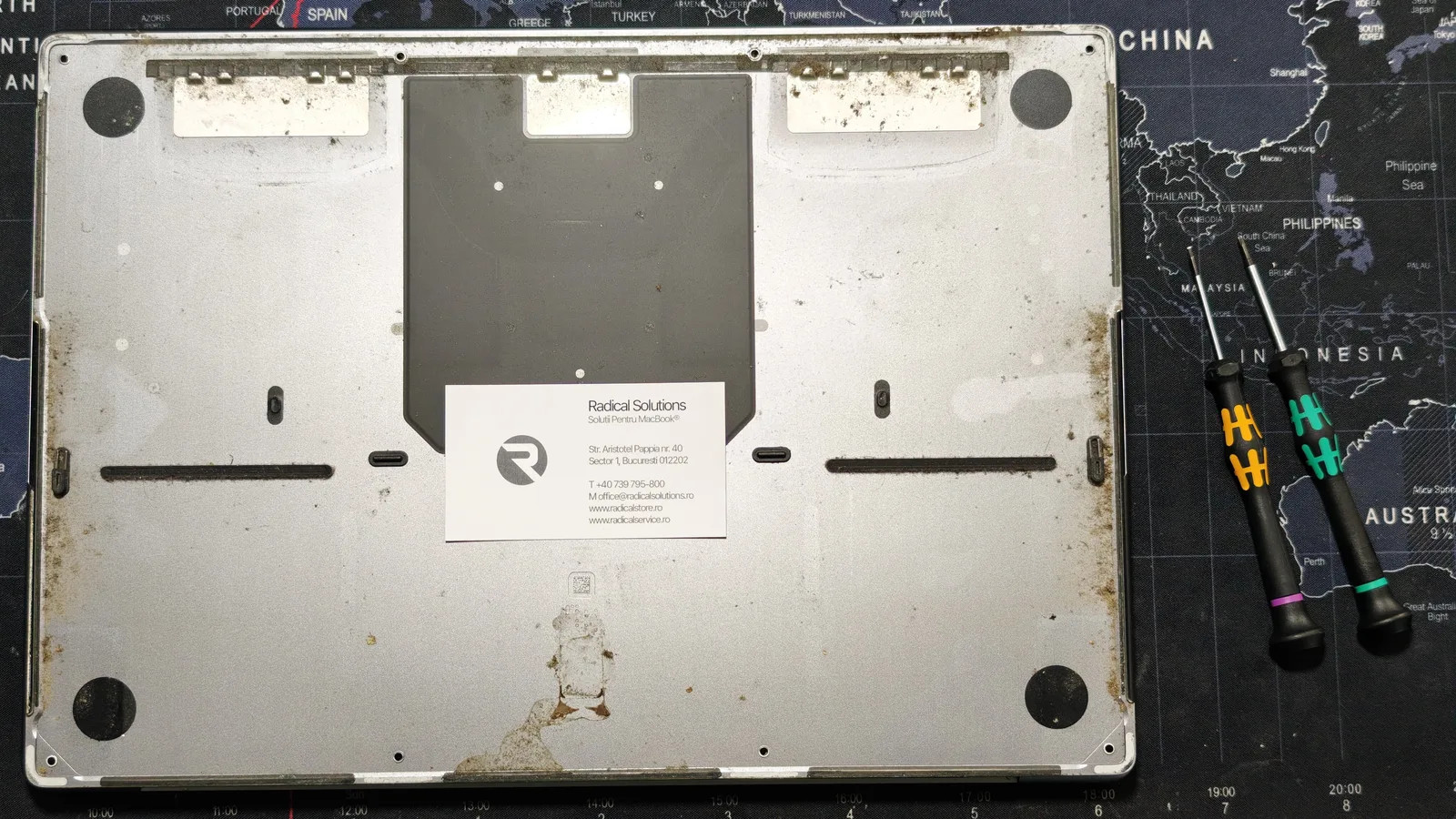
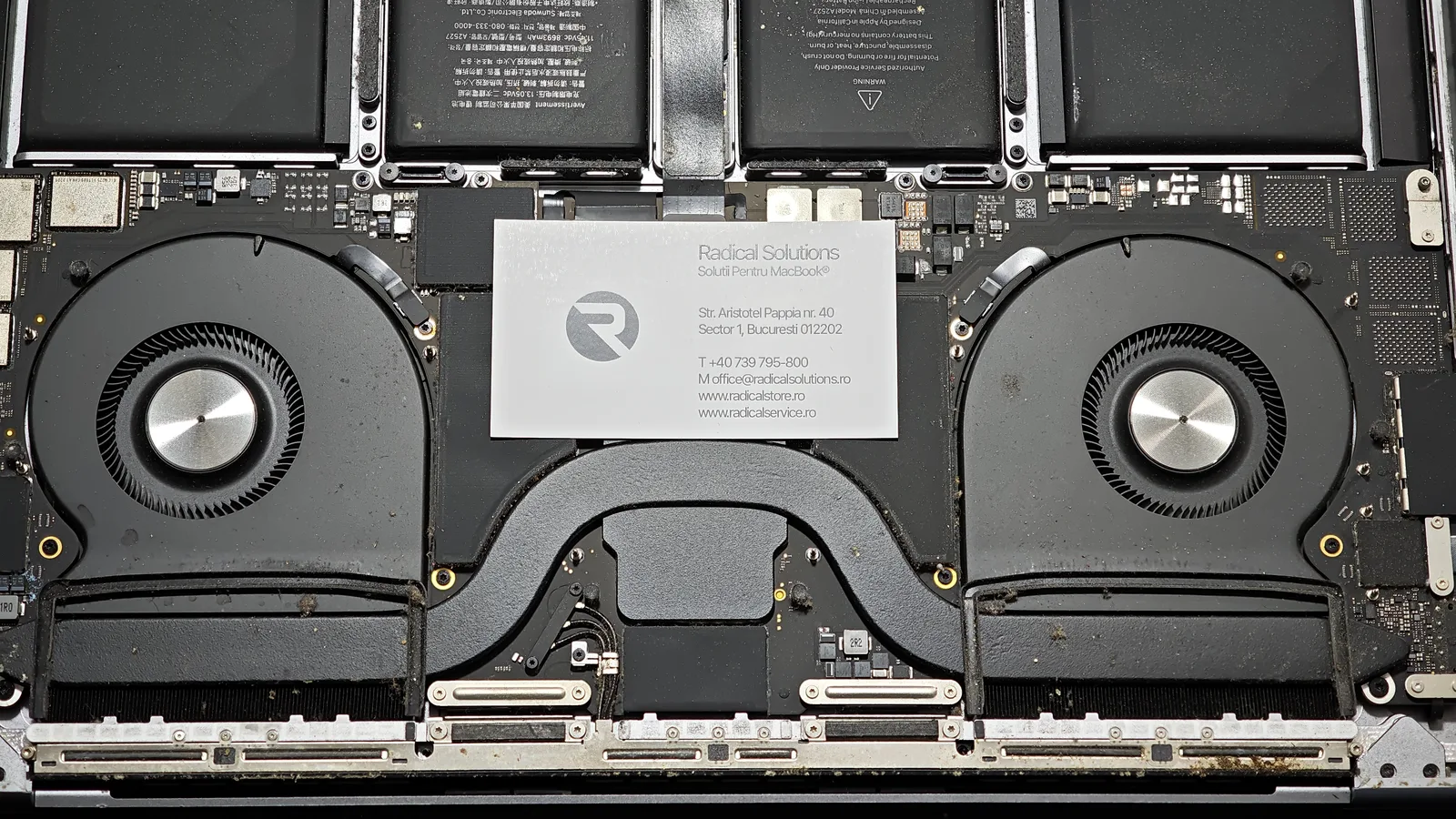
The surprise came when we opened it. Already on the inside of the bottom case you could see the liquid mark and, all along the edges, brownish deposits — not just ordinary dust, but soil. The laptop had most likely been used or left on a surface with a lot of soil, and the fans pulled it inside, year after year.
The heatsink: where it all builds up
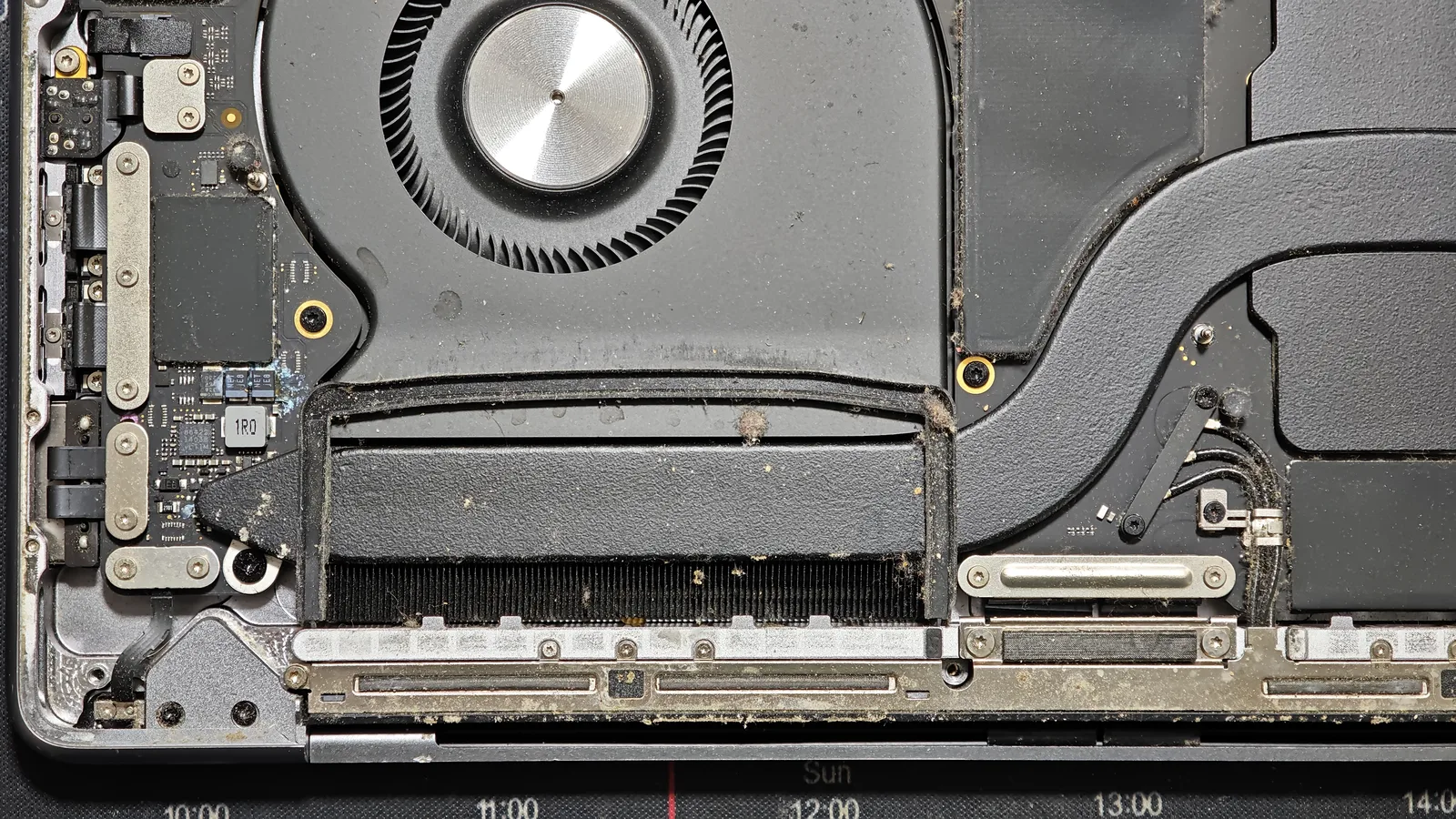
The MacBook Pro 16’s two fans draw air from underneath and push it through the heatsink fins. When that air carries dust and soil, the fins become a filter. In the photo below you can see the lint and bits of soil trapped there — and, next to the components on the board, a bluish trace that reveals the start of corrosion brought by the liquid.
Why liquid + dust + soil is such a bad combination
It holds moisture in place
Dust and soil soak up liquid like a sponge and keep it against components long after the surface looks dry.
It becomes conductive
The wet mix bridges traces and pins. On a powered board, that means corrosion and short-circuit risk.
It chokes the cooling
A clogged heatsink can’t shed heat. Even before the liquid, the laptop was probably running hotter than it should.
The battery didn’t escape either
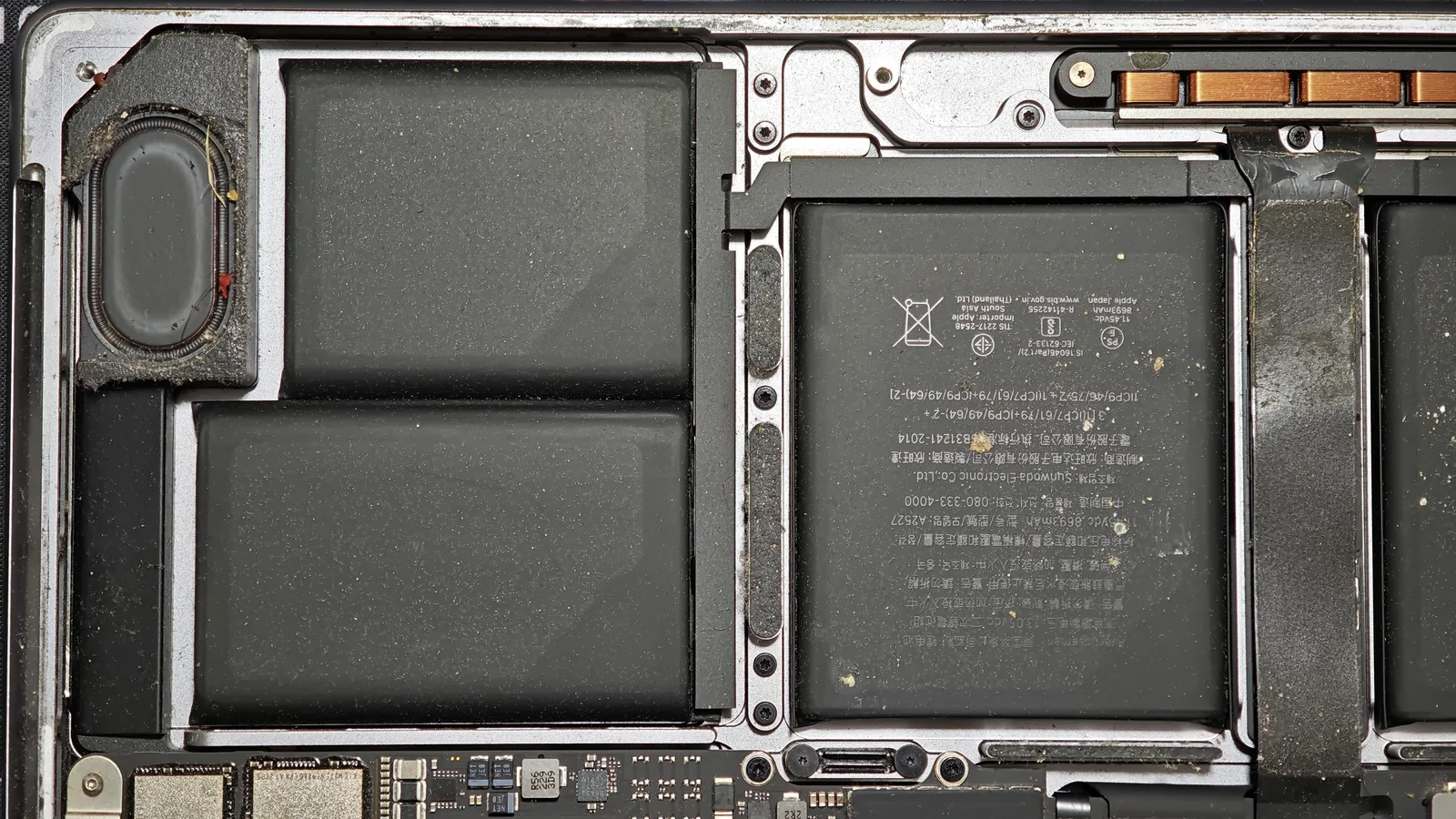
The dirt didn’t stop at the heatsink. The same soil and dust particles sit on the battery cells and around the speakers. The battery is a component we handle with maximum caution: we check it carefully for liquid traces, swelling or damage before any attempt to power the board.
How we work on a case like this
With a „no power” after liquid, we don’t start by swapping parts on a hunch. Order matters:
Disconnect the battery
First thing, before anything else: cut every power source so we don’t make the corrosion worse.
Clean everything
We remove the dust and soil, then clean the board of residue with dedicated solutions, including under components.
Inspect under the microscope
We look for corrosion, affected components and broken traces in the areas the liquid reached.
Measure and diagnose
We check the power rails to find exactly where the fault is before proposing a repair.
Tell you honestly
You get the diagnosis and the repair price before we start. If it isn’t worth it, we say so.
This case is still in progress
The laptop is in the workshop right now. We’ll come back with the outcome — what was affected, what was repaired and how it started up — as soon as we’re done.
How to avoid ending up here
Don’t use it on a bed, blanket or grass
The fans draw air from underneath. On fabric or outdoors they pull lint, dust and soil straight into the heatsink.
Keep liquids away from the keyboard
A glass placed next to the laptop is the most common start of a case like this.
If you spill something: shut it down now
Don’t turn it on, don’t charge it, and bring it in as soon as possible. Time makes the difference.
Internal cleaning every 1–2 years
On a heavily used laptop, a professional cleaning keeps cooling efficient and prevents big problems.
See also the case of a MacBook Air left for a month after a spill — what happens when liquid has time to work.